Edit User Account
SKIP TO
Navigate to Account Settings
- In the upper right corner of any dashboard screen, hover over your avatar.
TIP: Your avatar will either be your initials or a photo, if you previously uploaded one.
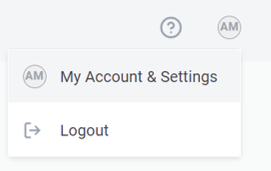
- Click My account & settings from the dropdown.
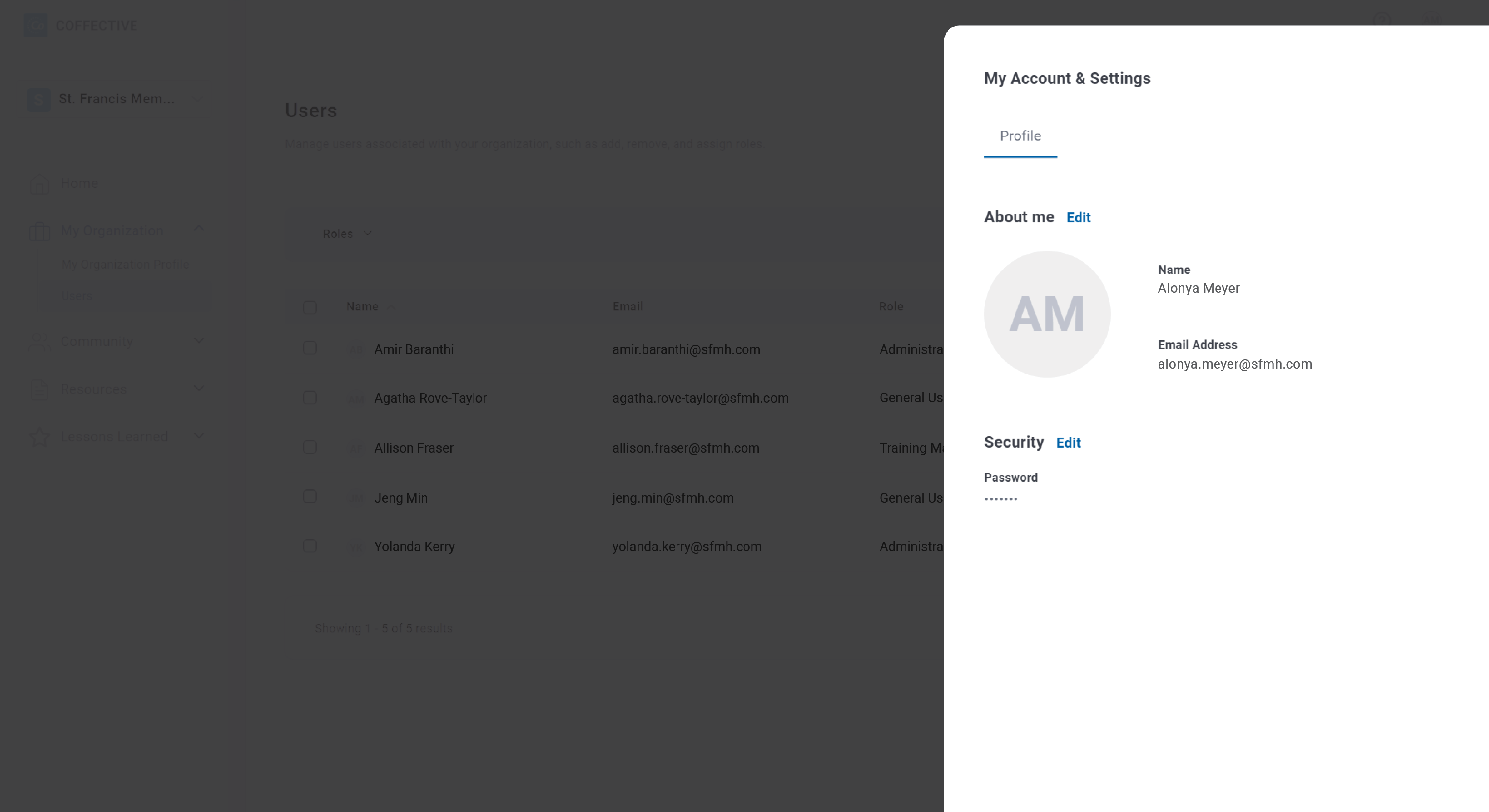
- A pop-out will appear over the right side of the screen.
Edit Name or Email
- From the My account & setting pop-out, click Edit next to the "About Me" heading.
- Enter your new name and/or email address.
- Click Save changes.
Edit Photo
Add or Change Photo
- From the My account & setting pop-out, click Edit next to the "About Me" heading.
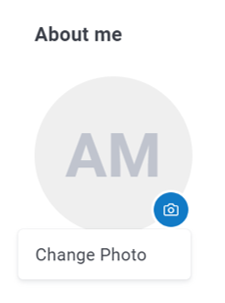
- Hover over the camera icon.
- Click Change photo from the dropdown. A file finder pop-up will appear.
- Locate the file on your device that you want to upload. Click Open.
- Click Save changes.
Remove Photo
- Click Edit next to the "About Me" heading.
- Hover over the camera icon.
- Click Remove photo from the dropdown.
- Click Save changes.
Change Password
- Click Edit next to the "Security" heading.
- Enter your current password.
- Enter and confirm your new password.
- Click Save changes.
Did this answer your question?
Thanks for the feedback
There was a problem submitting your feedback. Please try again later.

