
Add Partners
There are three ways to add an organization to your list of partners.
SKIP TO
Add a Partner from Map View
- In the left navigation sidebar, click Community to expand the section.
- Click All Organizations.
- Within the map, locate the organization you want to add to your list of partners.
- Click on their map marker. A pop-out of their organization profile summary will appear.
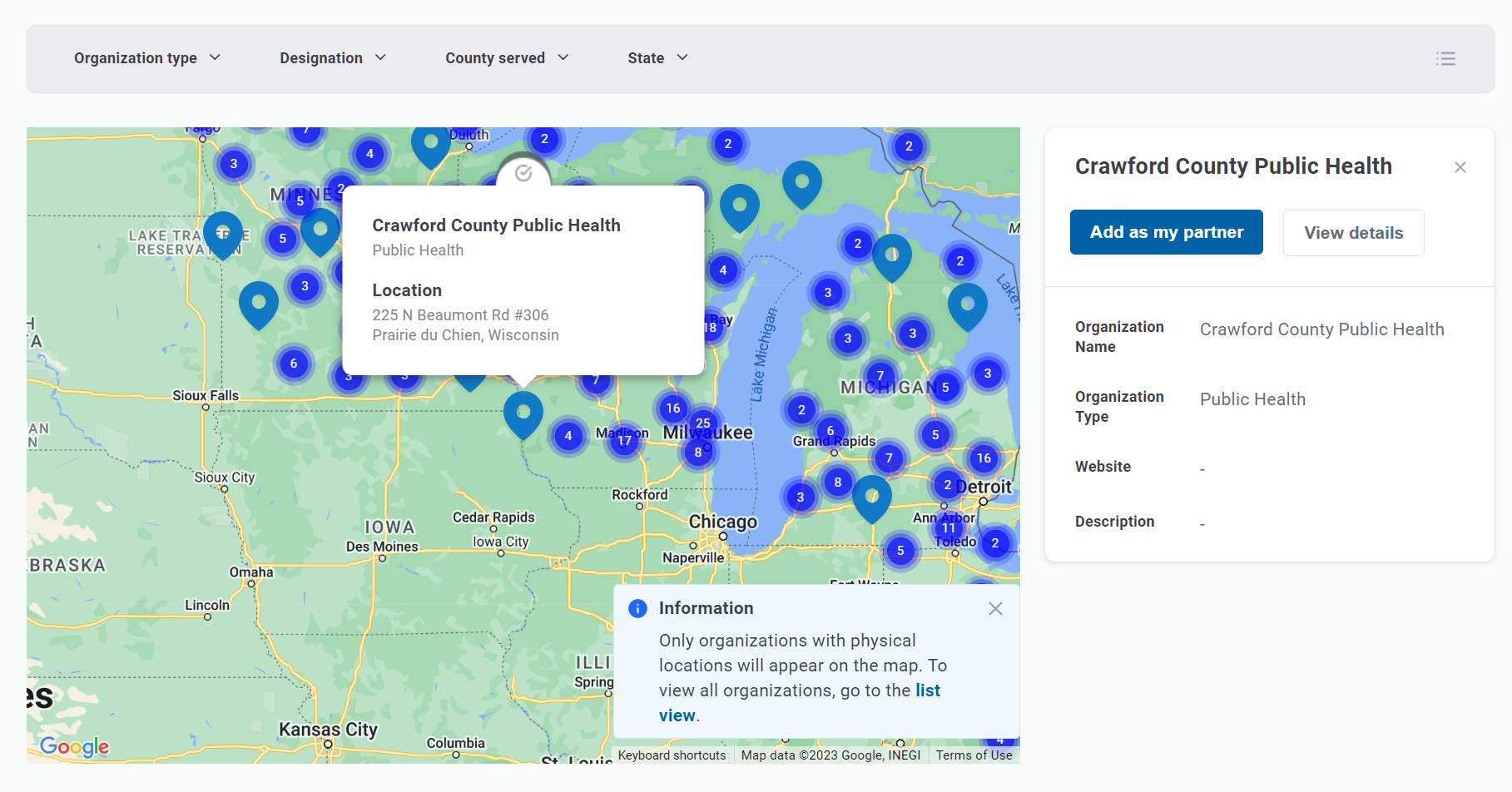
- Click Add as my partner.
Add a Partner from List View
- In the left navigation sidebar, click Community to expand the section.
- Click All Organizations.
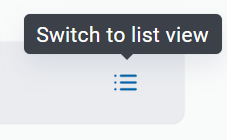
- Click the view toggle button to switch to list view.
- Within the list, locate the organization you want to add to your list of partners.
- Hover over the ellipses (...) in the organization row.
- Click Add partner from the dropdown.

Add a Partner from Profile Page
- From the details page of an organization profile, click Add as my partner in the upper right corner.

Good to Know
- Users will NOT be notified if you add or remove their organization from your list of partners.
- Adding and removing organizations from your list of partners will NOT impact other organizations' lists of partners.
- Partners listed in this section are for an entire organization, and are not specific to a user. In other words, adding and removing organizations from your list of partners WILL impact what users in your organization see in their list of partners.