
Invite an Organization
Invite an Organization from Home Screen
- At the bottom of your Home screen, click Send an invite for organizations to join you in the Coffective dashboard.

- A pop-up will appear. Enter the organization name and the name and email of a contact person at the organization.
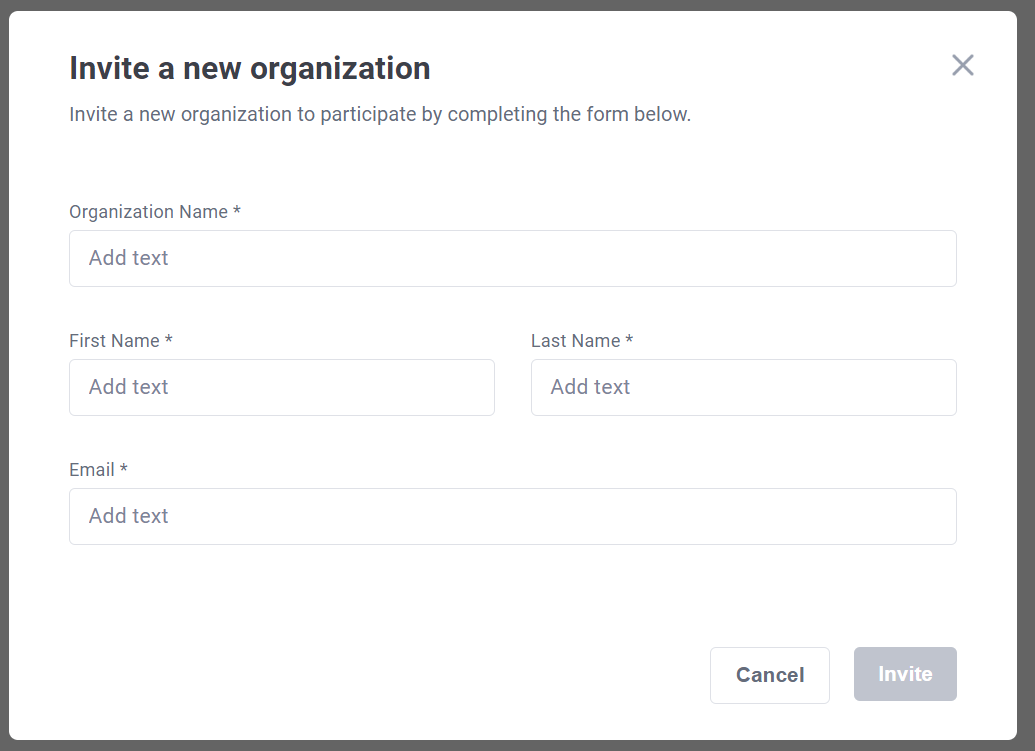
- Click Invite. The contact will be sent an email notifying them that your organization has invited them to participate in the Coffective dashboard.
Invite an Organization from Community
- At the top of the map view or list view of the Community section, click Invite a new organization.

- Enter the organization name and the name and email of a contact person at the organization.
- Click Invite. The contact will be sent an email notifying them that your organization has invited them to participate in the Coffective dashboard.
