
View Learner Progress
Training Managers Only: You must be a Training Manager for your organization to view learner progress or run course completion reports.
As a Training Manager for your team, you can view learner progress and course completion any time. Use the steps below to run a learner progress report.
-
In your Coffetive dashboard, click Training in the left sidebar.

-
Click the Go to training button under "Breastfeeding Education." A new tab will open to your training dashboard.
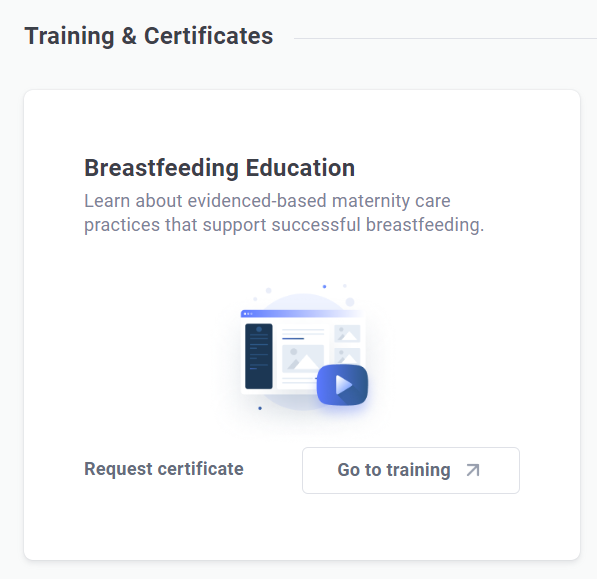
-
If you belong to multiple teams, be sure you are viewing the correct team by selecting the appropriate one from the "You are viewing the team" dropdown.
(Note: If you change the dropdown selection after going to "Reports," you'll be taken back to your dashboard home screen.)

-
Within the training dashboard left sidebar, click Reports.
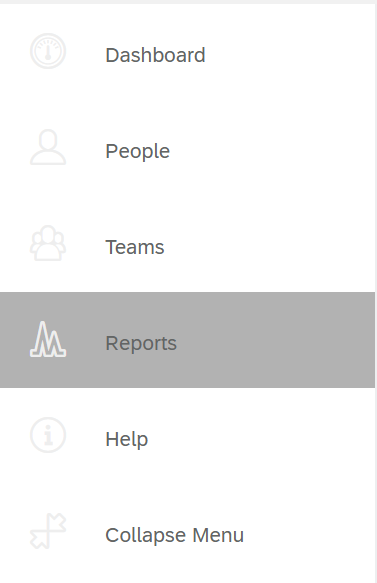
-
Under “Quick Reports,” select People. (If you don't need to download a full progress report, here is where you see a quick glance at progress.)
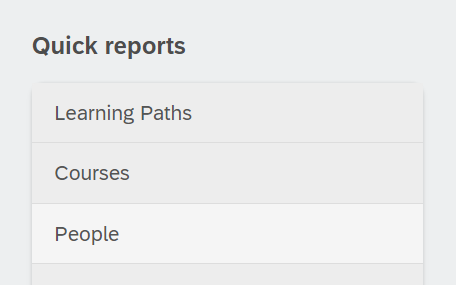
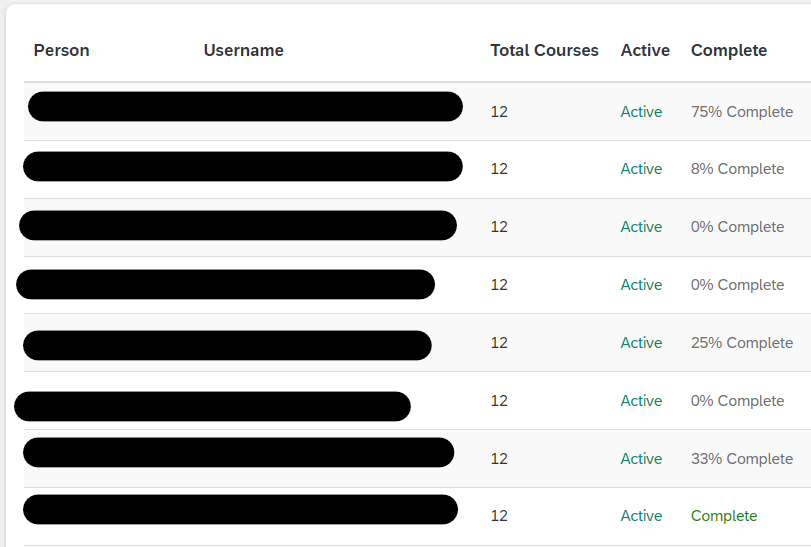
-
If you do want to download a full report, click the green Download / schedule this report in the upper right.

-
In the pop-up window, title your report. We suggest including the current date. Keep the file format as a CVS for greater editing flexibility.
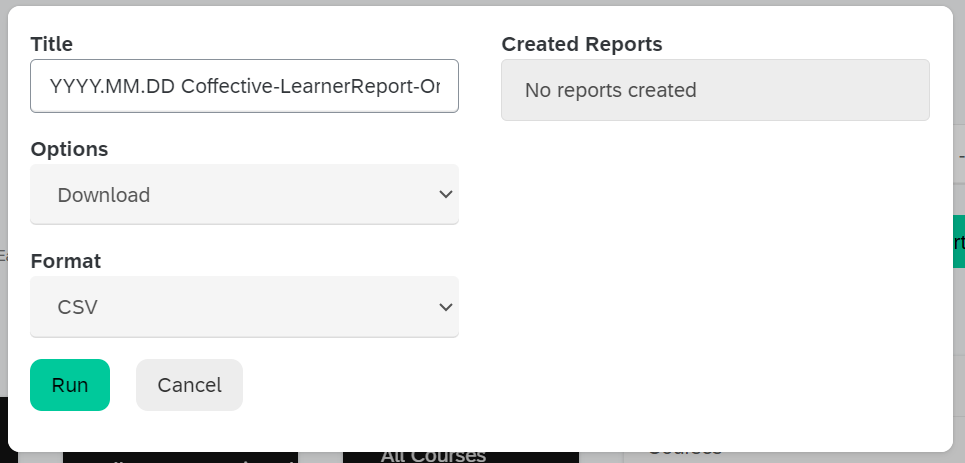
- Click the green Run report button.
-
After the report processes, a report hyperlink will appear under “Created Reports.” Click the link. A prompt will appear to save the report file to your computer.
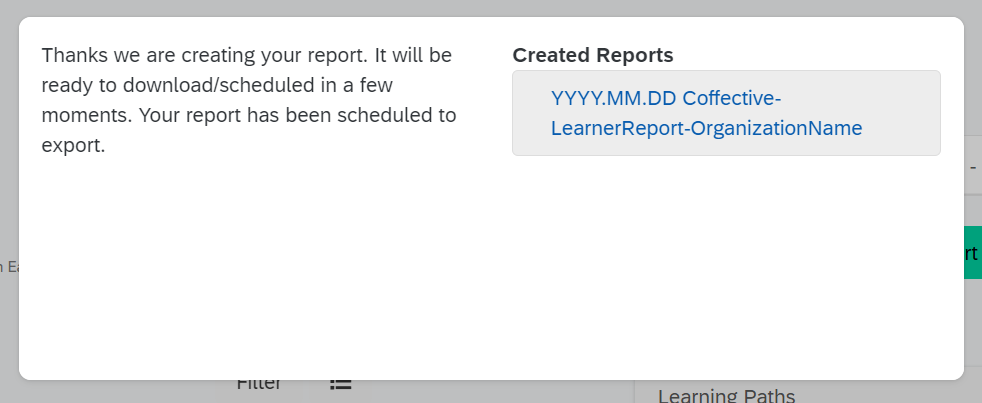
- Open the CVS file.
- Resize the columns, as desired.
- Remove all columns except:
- Full Name (A)
- Email (E)
- Total Courses (S)
- Complete (W)
- Percentage (X)
- Teams (AB), if applicable
- Started (AC)
- Not Started (AD)
- Total Complete (AE)
- Save file as an Excel Workbook file.
