
Manage Users
Admins Only: You must be an Administrator for your organization to manage associated users.
SKIP TO
Add a User
- In the left navigation sidebar, click My Organization to expand the section.
- Click Users.
- In the upper right corner, click Add New User.
-
A pop-up will appear. Enter the new user's first and last name, email, and role.
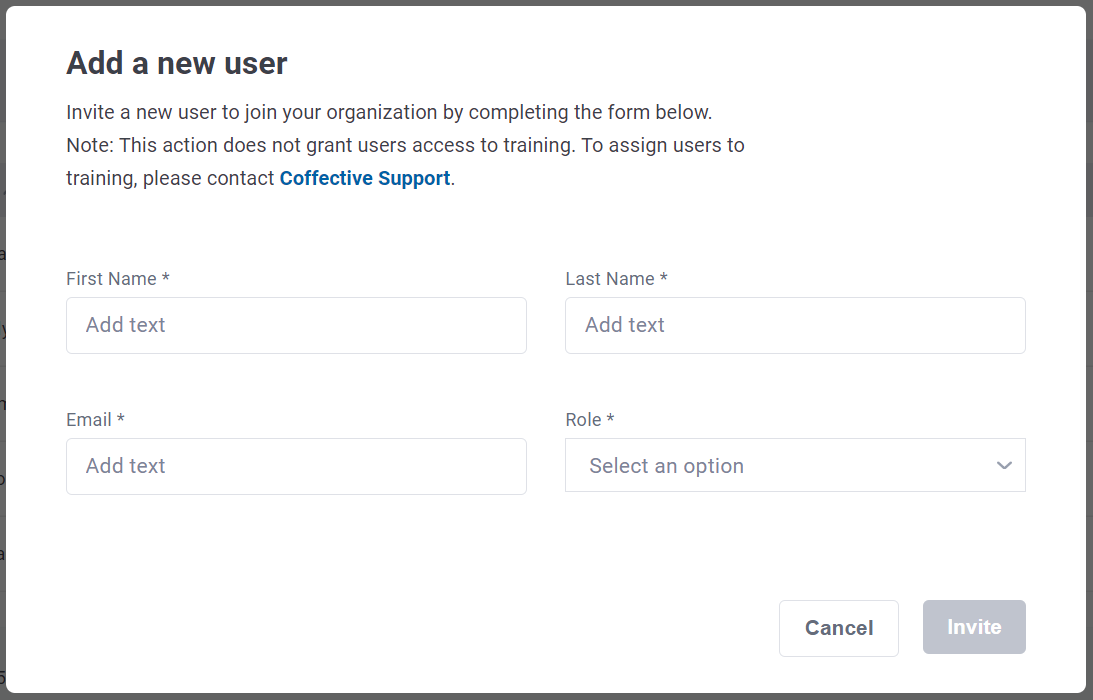
- Click Invite. The new user will be sent an email notifying them they have been added to your organization.
Note: This action does not grant users access to training. To assign users to training, please contact training@coffective.com.
Edit User Information
Edit a User's Name and/or Email
Once a user has completed account set-up, only the user can change their own name and/or email.
Edit a User's Role
- In the left navigation sidebar, click My Organization to expand the section.
- Click Users.
- Locate the user whose role you want to change.
- Hover over the ellipses (...) in the user's row.
- Click Edit from the dropdown. A pop-up will appear.
- Within the "Role" field, clear the user's current role by clicking the "X" next to the role.
- Select the new role for the user.
- Click Save changes.
Remove a User
Good to Know: Removing a user does not delete the user's account. It simply removes them from being associated with your organization. The removed user will no longer see your organization in their Coffective dashboard.
- In the left navigation sidebar, click My Organization to expand the section.
- Click Users.
- Locate the user you want to remove from your organization.
- Hover over the ellipses (...) in the user's row.
- Click Remove from the dropdown. A confirmation pop-up will appear.
- Click Remove.